

How To Create A Discussion Assignment In Canvas
How do I create a discussion "forum" in Canvas that mimics Blackboard's Discussion Board structure?
Discussion forums similar to Blackboard can be created in Canvas using:
- A content Page for discussions graded separately.
- An Assignment with one grade for all discussions.
The following instructions are for discussions graded separately using a content Page.
Note: Follow the steps below using a Canvas Assignment to create a discussion forum with one grade for all discussions in the forum. When using Canvas Assignment to create a discussion forum, uncheck the Graded option (Step 5 below) in a discussion.
To grade discussions separately using a content Page:
- Navigate to Discussions in the menu

- Select the + button to add a new discussion

- Add a discussion title and instructions, then Select Graded checkbox
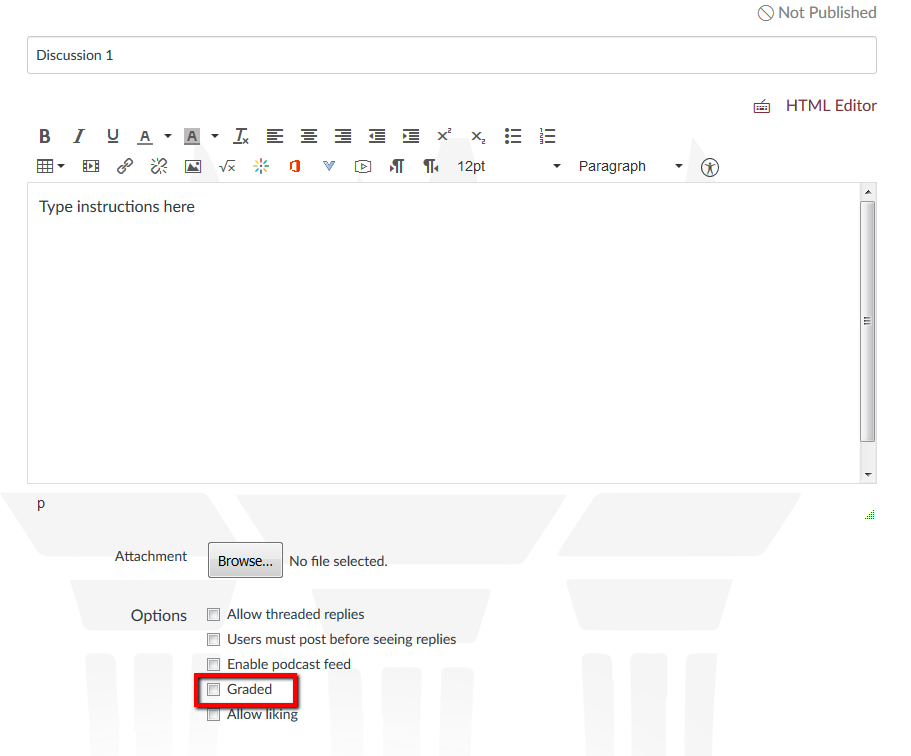
- Add discussion points and select the Save button at the bottom.

- Repeat steps above to create more discussion topics.

Now, create a content Page in a module:
- Select Modules in the navigation menu

- Select the + button in the desired module to assign a discussion forum.

- Select Content Page from the drop-down menu
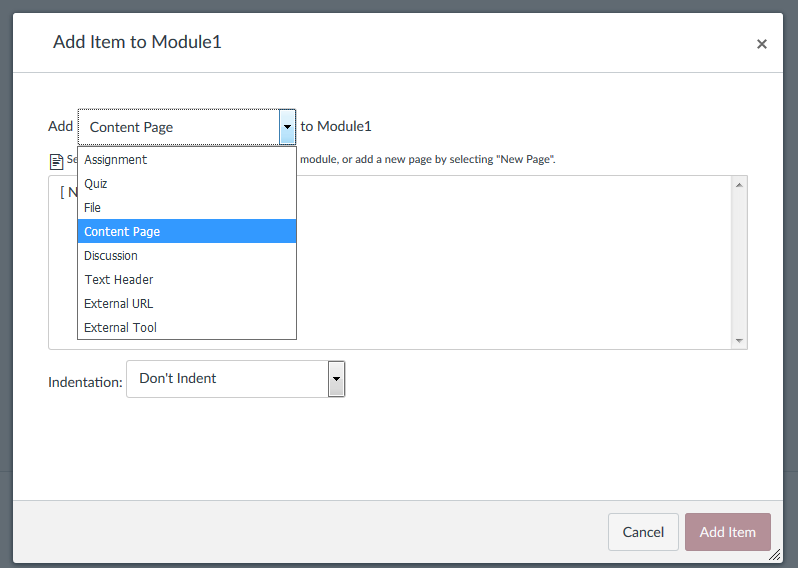
- Select New Page

- Type a title in the Page Name file and select the Add Item button
- Select the page title

- Select the Edit button

- Type forum instructions and place the cursor where you would like to add the discussion links
- Select the Links tab in the top right corner

- Select the Discussions menu

- And select the discussion topic which you would like to add to the forum
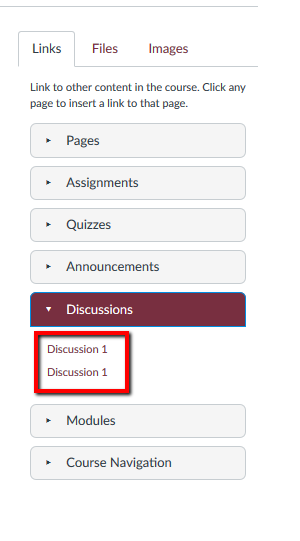
- Repeat Steps 10 and 11 to add more discussion links to the forum.
- Select the Save button after you have added all the discussion links

Now let's add a Back link to this content page created as a discussion forum.
-
Select a discussion link

-
Select the Edit button

-
Type text to add a back link to the discussion e.g. Back to Module 1: Discussion and select and highlight the text Back to Module 1: Discussion.

-
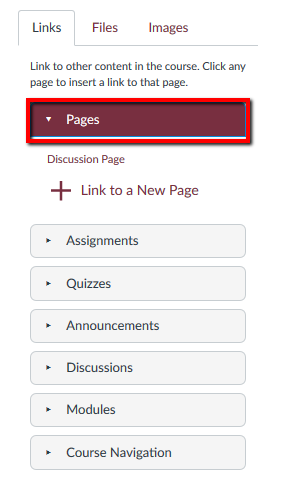
Select the Links tab in the top right corner and select Pages in the links tab
-
Select Discussion page and select Save

You have successfully created a back link to the discussion forum.
Repeat the steps to create Back link for all discussions.
Tip: Users can also click the browser back button to go back to the discussion forum. Alternatively, you can create a back link to a Module instead of a Page.
Repeat the steps above using a Canvas Assignment to create a discussion forum with one grade for all discussions in the forum. Make sure to uncheck the Graded option in a discussion.
How To Create A Discussion Assignment In Canvas
Source: https://support.canvas.fsu.edu/kb/article/983-how-do-i-create-a-discussion-forum-in-canvas-that-mimics-blackboards-discussion-board-structure/
Posted by: garretttennesers69.blogspot.com
0 Response to "How To Create A Discussion Assignment In Canvas"
Post a Comment